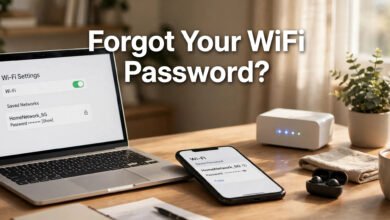
We’ve all been there. A friend visits, asks for your WiFi password, and your mind goes completely blank. The router sticker is faded, the password you “saved somewhere safe” is nowhere to be found, and your laptop is the only device still connected. The good news: your devices remember passwords you’d never remember yourself — and in 2026, every major platform gives you a built-in, legitimate way to look them up.
One thing before we start: this guide is strictly about recovering your own WiFi passwords — networks you own, pay for, or were given legitimate access to. There’s no section on cracking other people’s networks here, because that isn’t a tutorial topic; it’s someone else’s property. With that said, let’s find your password.
The Fastest Method: Ask a Connected Phone (Any Platform)
Before touching a router or command line, check the phone that’s already connected. This takes under a minute on both Android and iPhone, and it’s the method I reach for first every time.
On Android (Android 10 and later)
Google added an official password viewer back in Android 10, and it’s still the cleanest option in 2026:
- Open Settings → Network & internet → Internet (on Samsung: Settings → Connections → Wi-Fi).
- Tap the network you’re connected to, then tap the gear icon.
- Tap Share (or the QR code icon). You’ll be asked to authenticate with your fingerprint, face, or PIN.
- A QR code appears — and on most Android phones, the password is printed in plain text right below it.
Need the password for a network you’re not currently on? Go to the saved networks list (on Pixels: Settings → Network & internet → Internet → scroll to Saved networks) and repeat the same steps for any network your phone remembers.
One quirk worth knowing: on Samsung Galaxy devices, the plain-text password sometimes doesn’t appear — you only get the QR code. The easy workaround: screenshot the QR code and scan it with another phone’s camera or Google Lens. The decoded text includes your password (it looks like WIFI:T:WPA;S:YourNetwork;P:YourPassword;; — the part after P: is what you want).
On iPhone (iOS 16 and later)
Apple finally added this in iOS 16, and it’s still there in current versions:
- Open Settings → Wi-Fi.
- Tap the “i” icon next to your connected network.
- Tap the Password field and authenticate with Face ID, Touch ID, or your passcode.
- The password reveals itself — tap to copy it.
On newer iOS versions you can also find saved networks in the Apple Passwords app under the Wi-Fi category. Running an older iOS without the viewer? Skip to the router method below — it works regardless of your phone’s version.
On Windows: Two Reliable Ways
Your Windows laptop has been quietly saving every WiFi password it’s ever been given. Here’s how to pull one up.
Method 1: Network Settings (the easy one)
- Press Win + R, type
ncpa.cpl, and hit Enter. - Right-click your active Wi-Fi network and choose Status.
- Click Wireless Properties, then open the Security tab.
- Check Show characters — your password appears in the box.
Method 2: Command Prompt (for any saved network)
The settings method only shows the network you’re currently connected to. For a network you connected to last month at your parents’ house, use the command line:
- Open Command Prompt (search “cmd” in the Start menu).
- Type
netsh wlan show profiles— this lists every WiFi network your PC remembers. - Type
netsh wlan show profile name="NetworkName" key=clear(replacing NetworkName with the actual name). - Under Security settings, look for Key Content — that’s your password.
I keep this one in my notes app. It works on Windows 10 and 11, and I’ve used it more times than I care to admit.
On Mac: The Passwords App or Keychain Access
Mac users have two paths depending on their macOS version:
- macOS Sequoia and later: Open the Apple Passwords app, authenticate with Touch ID or your system password, tap the Wi-Fi category, choose the network, and reveal the password.
- Older macOS: Open Keychain Access (in Utilities), search for your network name, double-click the entry, and check Show Password. You’ll need to enter your Mac login password.
The Universal Fallback: Your Router’s Admin Panel
If no connected device is handy — or you want to manage things properly — your router’s own settings page always has the answer. This works on any device with a browser.
- Find your router’s IP address. On iPhone: Settings → Wi-Fi → tap the “i” → look for Router. On Windows, run
ipconfigin Command Prompt and look for Default Gateway. It’s usually192.168.1.1or192.168.0.1. - Type that address into your browser. You’ll reach a login page — the default username and password are usually printed on the router’s sticker (common defaults are
admin/adminoradmin/password). - Navigate to Wireless or Wi-Fi Settings, then Wireless Security. Your current WiFi password is listed there.
While you’re in there, do two things your future self will thank you for. First: if you’re still using the default admin password, change it now — default credentials are the first thing automated attacks try. Second: consider giving your WiFi a fresh password you can actually remember, then save it in a password manager. The best password-recovery method is never needing one.
Managing Your Home Network Like a Grown-Up
Finding a lost password is a one-time fix. Keeping your network sane is the long game. A few habits that save real headaches:
- Use a guest network for visitors. Most modern routers let you create one in two minutes — guests get internet without ever seeing your main password.
- Store credentials in a password manager (Bitwarden, 1Password, or your browser’s built-in one). “Saved somewhere safe” only works if somewhere has a search box.
- Label your router’s sticker. If you ever change the admin login, write the new one on the sticker — future-you is counting on it.
- Update router firmware when prompted. Those updates patch real security holes.
What About Those “WiFi Unlocker” Apps?
You may have seen apps promising to “unlock” any WiFi network or reveal passwords of networks you’ve never joined. My honest advice: don’t install them. The legitimate ones are just password managers for networks you already know. The sketchy ones are often adware, ask for permissions they have no business having, or flat-out can’t do what they claim. Everything in this guide uses your devices’ built-in tools — no third-party app needed, nothing to download, nothing to trust blindly.
Frequently Asked Questions
Can I see a WiFi password without being connected to that network?
Yes, on most devices. Android shows passwords for any network in your Saved networks list. Windows can show any remembered profile via the netsh wlan show profiles command. iPhone shows passwords for networks in the Apple Passwords app. Your router’s admin panel shows its own network’s password regardless of what you’re connected to.
Is it legal to view a saved WiFi password on my own device?
Absolutely — it’s your device, your network credentials, stored by your own operating system. What you must not do is use these methods (or “unlocker” apps) to access a network you don’t have permission to use. That crosses into unauthorized access, which is illegal in most jurisdictions.
Why doesn’t my Samsung phone show the password in plain text?
Samsung’s One UI sometimes only displays the QR code on the share screen, without the plain-text password below it. Screenshot the QR code and scan it with another device’s camera or Google Lens to read the password from the decoded text.
I forgot my router’s admin password too. Now what?
Hold the router’s reset button for about 10 seconds (a paperclip helps). This restores factory defaults, including the default admin login printed on the sticker. Warning: this also wipes your custom WiFi name and password, so you’ll need to set those up again — and this time, save them in a password manager.
How often should I change my WiFi password?
There’s no magic schedule. Change it if you’ve shared it widely, after a device you don’t trust had access, or if you suspect unauthorized users. A strong, unique password stored in a password manager matters far more than frequent changes.
 🌐
🌐Free Website
🌐 FREE Website — Turn Your Ideas Into Income
Want a handsome monthly income? Publish helpful articles consistently and let Google traffic grow into real earnings — steady work, never overnight magic. We never guarantee earnings.
Disclosure: This article contains an affiliate link. If you purchase hosting through it, we may earn a commission at no extra cost to you.
 🐶
🐶Free Pet Guides
🦴 Four-Legged Family Members Welcome
🧮Money Tools
🧮 Earnrove — Free Money Calculators